Buying a used car can be a difficult process. People usually have to check multiple websites, compare prices, search different locations, contact sellers, and travel long distances just to inspect a vehicle.The Nearby Cars App is designed to make this process easier by bringing car listings, location-based search, categories, maps, filters, and seller-related features together in one simple mobile application.
Whether you are looking to buy a used car, find a car near your location, compare different vehicles, or eventually sell your own car, the Nearby Cars App is designed to provide a convenient way to discover vehicles available around you. This article explains everything you need to know about the Nearby Cars App, including what the app is, who can use it, how to use its features step by step, how to download it, and why downloading the app can be useful.
| Details | Link |
|---|---|
| Download the Nearby Cars App | Google Play Store |
| Official Nearby Cars Website | nearbycar.in |
What Is the Nearby Cars App?
Nearby Cars is a car discovery and vehicle listing mobile app that helps users find cars available in nearby locations.
Instead of searching for vehicles only by car name, the app focuses strongly on location-based discovery. Users can browse car listings, see their prices, check the distance, identify the vehicle’s location, explore different categories, and view cars on a map.
- Home
- Categories
- Map
- Profile
- Car Listings
- Brand Filters
- Body Type Filters
- Nearby Listings
- Favorite options
- Share options
- Login
- Help Center
- FAQs
- Privacy Policy
- Terms of Service
- Safety Guidelines
- Data Deletion Policy
This makes Nearby Cars more than just a simple list of vehicles. It is designed as a vehicle marketplace and discovery platform where users can search, filter, explore, save, share, and potentially list cars.
Who Can Use the Nearby Cars App?
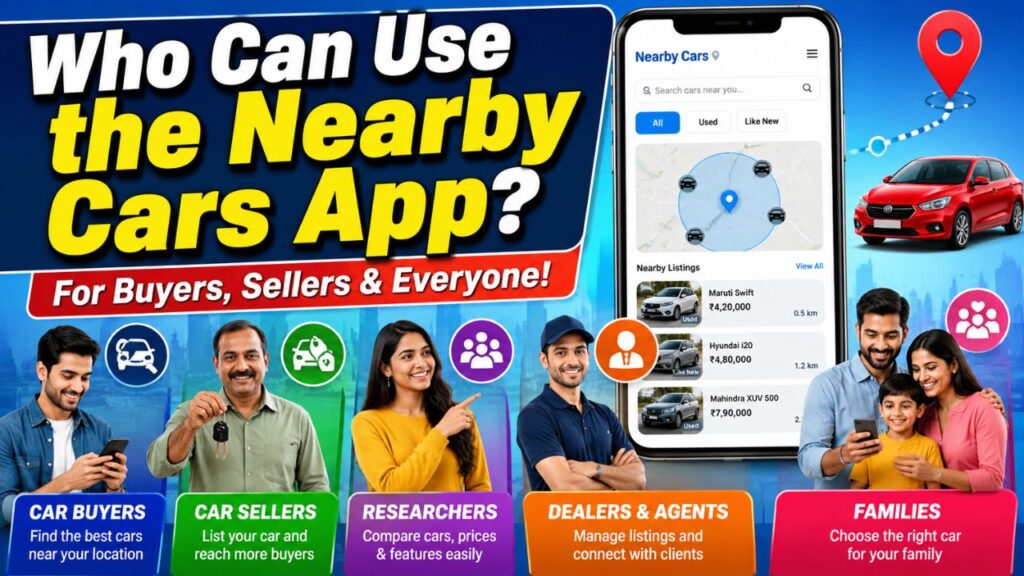
1. People Looking to Buy a Used Car
If you are planning to buy a used car, the app can help you discover vehicles available around your location. Instead of manually searching through multiple sources, you can browse available listings from one place.
2. People Looking for Cars Near Their Location
The app is particularly useful for people who want to find vehicles close to them. The Map and Nearby Listings features make it possible to discover cars within a selected distance.
3. Users Looking for a Specific Brand
If you are interested in a particular manufacturer such as Maruti Suzuki, Hyundai, Volkswagen, or another brand, the Categories section can make it easier to browse relevant listings.
4. Users Looking for a Specific Type of Vehicle
Someone looking specifically for an SUV, Sedan, Hatchback, or MUV can use the available body-type filters.
5. Car Sellers
A future or integrated listing feature can also allow vehicle owners to add their own cars to the platform and reach potential buyers.
6. People Comparing Different Cars
Users who are not ready to purchase immediately can use the app to explore different vehicles, prices, locations, and categories before making a decision.
Why Should You Download the Nearby Cars App?
View Important Information Quickly
- Car name
- Price
- Condition
- Distance
- Vehicle category
- Location
Why Should You Download
- Search Using Categories
- Explore Cars on a Map
- Save Interesting Cars
- Share Cars With Others
- Simple Navigation
How to Download the Nearby Cars App
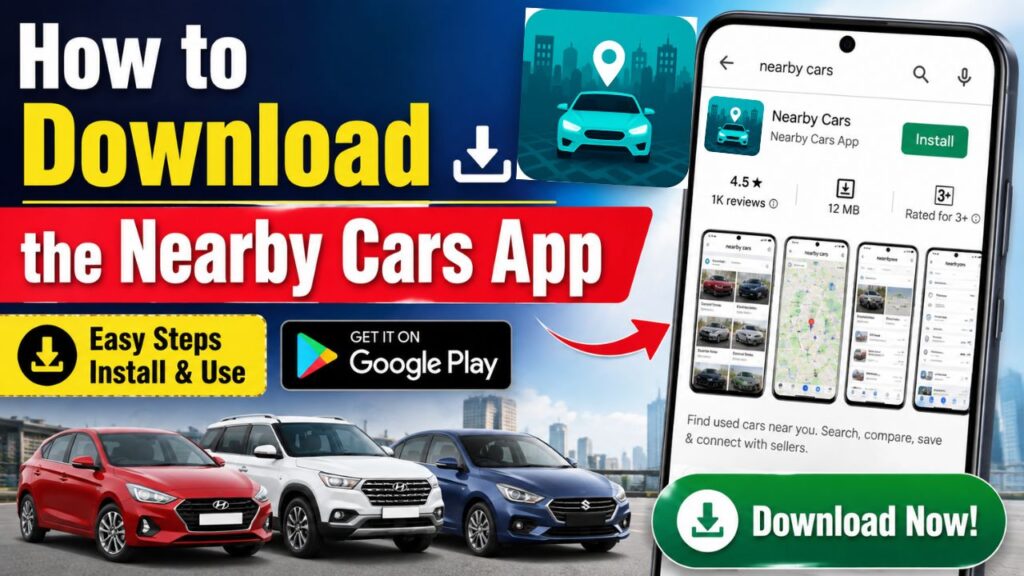
Step 1: Open the Google Play Store
Step 2: Search for Nearby Cars
Use the search bar and enter:
Nearby Cars
Look for the official application and verify that the app name and publisher information match the official details.
Step 3: Open the App Page
Step 4: Tap Install
Press the Install button.
The application will be downloaded and installed on your phone.
Step 5: Open the App
Once installation is complete, tap Open to launch the application.
Getting Started With the Nearby Cars App
Once the app is installed, the first thing you will notice is a simple navigation system. The main navigation shown in the screenshots includes: Home | Categories | + | Map | Profile Each section has a different purpose. Let’s understand them one by one.
How to Browse Cars:
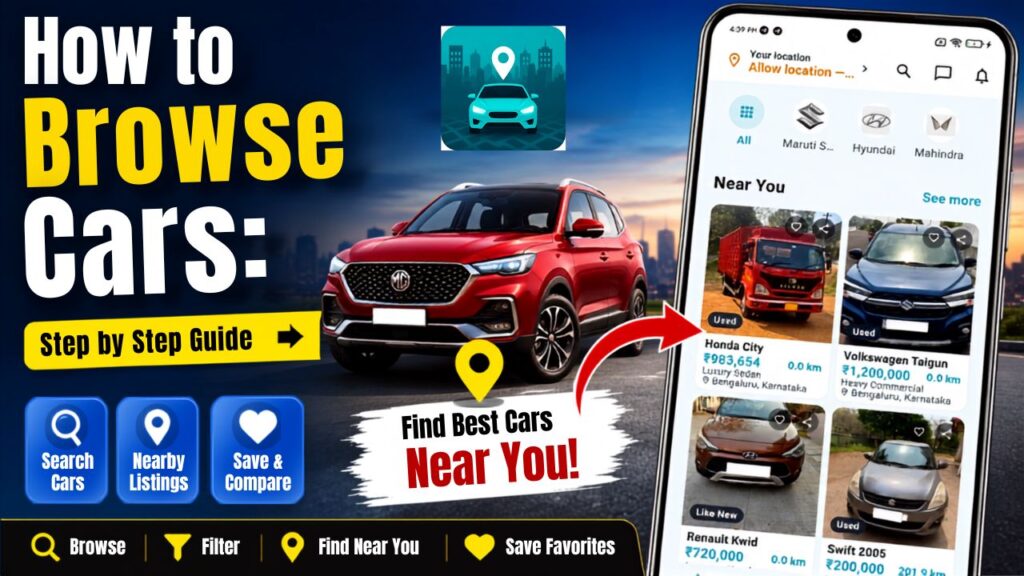
Open the App
Launch Nearby Cars on your smartphone. You can begin browsing available vehicle listings through the application’s main sections.
Browse Available Car Listings
The app displays vehicle cards containing important details. For example, a listing can show information similar to:
Maruti Suzuki Baleno
₹445,000
292.2 km
Mini Hatch
Karnataka
A condition label such as Used or Like New may also appear on the vehicle image. This gives you a quick overview of the vehicle.
Understand the Car Listing Card
The car card is one of the most important parts of the app. A typical listing can contain:
Car Image
The image helps you identify the vehicle visually.
Condition
The listing can show labels such as:
Used
or
Like New
This gives you an immediate indication of the vehicle’s condition category.
Car Name
The vehicle model is displayed prominently. Examples may include:
- Renault Kwid
- Swift
- Mahindra XUV 500
- Maruti Suzuki Baleno
Price
The listed selling price is shown directly below the vehicle name.
Distance
The app can display the approximate distance associated with the listing.
Vehicle Category
You may see descriptions such as:
- Premium Hatch
- Mid-size SUV
- Mini Hatch
- Luxury Sedan
- Heavy Commercial
Location
The listing also displays the vehicle’s location, such as:
Bengaluru, Karnataka
This helps users understand where the vehicle is located.
Categories Section:
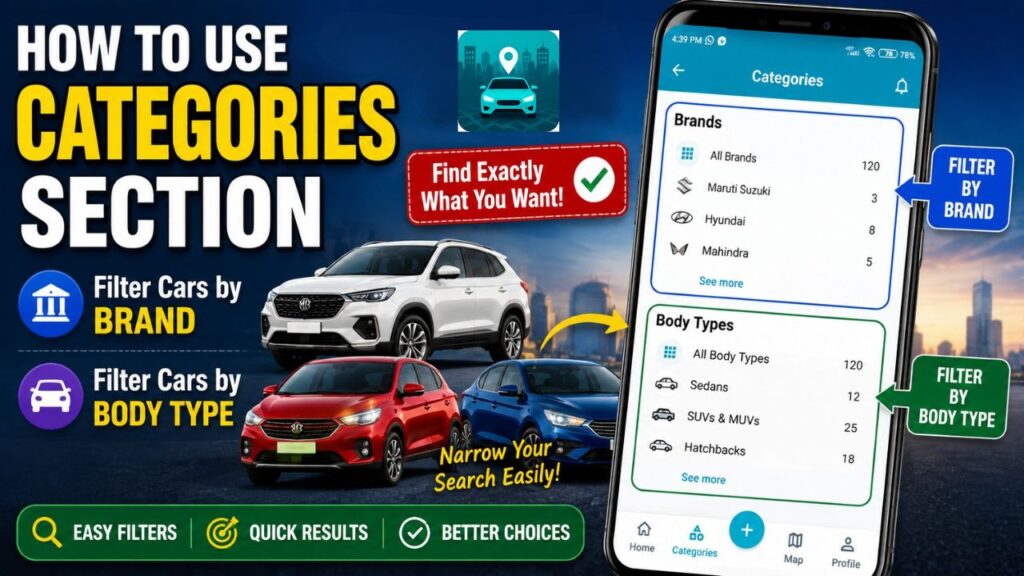
Brands
and
Body Types
This makes it easier to find the exact kind of vehicle you are interested in.
Filter Cars by Brand:
Under the Brands section, users can choose a specific manufacturer. For example, the screen may display:
All brands
Maruti Suzuki
and other available brands.
A number displayed next to a brand can indicate how many matching listings are available.
For example:
Maruti Suzuki (3)
can indicate that three matching vehicles are currently available in that category or result set.
This is useful when you already know which brand you want.
Filter Cars by Body Type:
The app also allows you to browse vehicles according to their body type.
Examples shown in the interface include:
Sedans
SUVs & MUVs
and other categories.
This can be helpful when your requirement is very specific.
For example:
If you want a family SUV, you can focus on SUV and MUV listings instead of browsing every available vehicle.
Map Section:
Tap Map from the bottom navigation bar. The Map screen is one of the most important features of Nearby Cars. It is designed to help users understand where available vehicles are located.
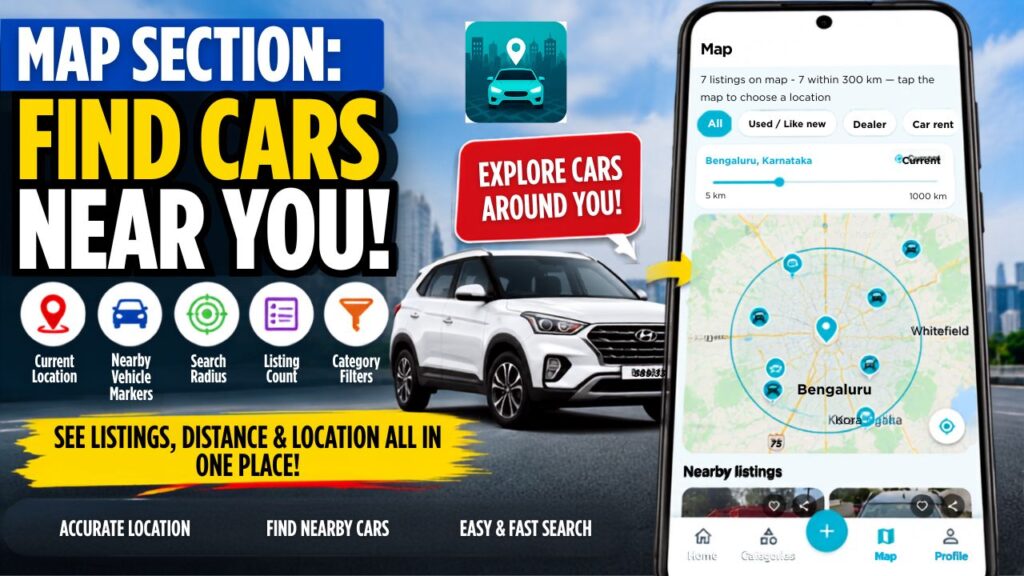
- Current location
- Nearby vehicle markers
- Search radius
- Listing count
- Category filters
This makes location-based car discovery much easier.
Select Your Location:
The Map page can show your current location, such as:
Bengaluru, Karnataka
The app can use this location as the center point for searching nearby vehicles. Depending on the application permissions and implementation, the user may need to allow location access for this feature.
Profile Section:
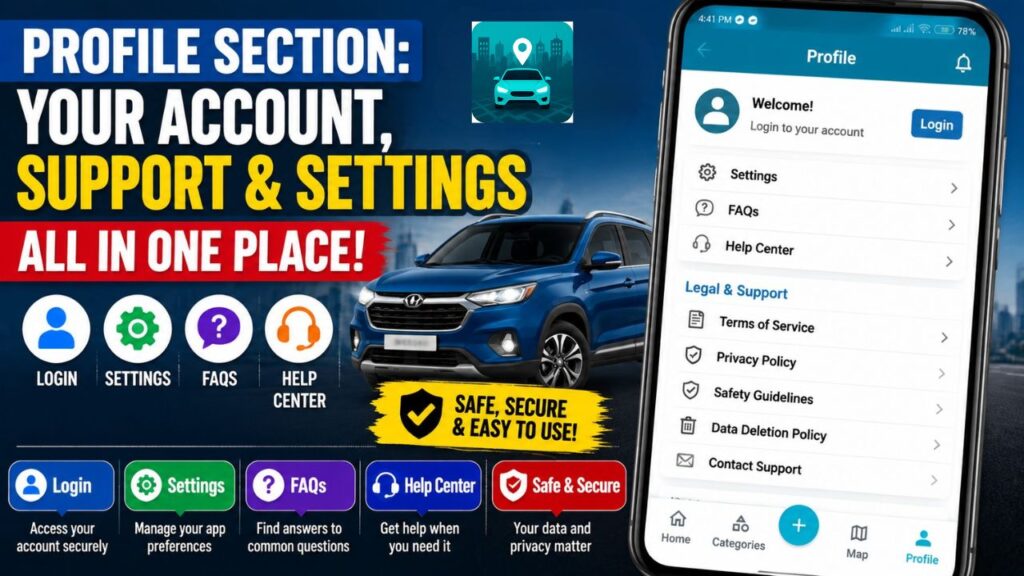
Tap Profile from the bottom navigation.
Login
Settings
FAQs
and a Legal & Support section.
This makes the Profile section the main place for account, support, and app-related information.
Settings:
- Tap Settings to access application-related settings.
- The exact settings depend on the final implementation.
- Common options may include account preferences, notification settings, privacy options, and other application controls.
FAQs :
- The FAQs section stands for Frequently Asked Questions.
- This section is designed to answer common questions users may have about the application.
- Instead of contacting support for every basic question, users can check the FAQs first.
- This makes the app easier to understand and use.
Help Center:
- The Help Center provides a dedicated place for user assistance.
- It can be used when you face a problem or need additional information about using the app.
- A properly implemented Help Center can improve the overall user experience by making support easier to access.
Terms of Service
- The Terms of Service section explains the rules and conditions for using the application.
- Users should review these terms to understand the responsibilities and conditions associated with using the platform.
Privacy Policy:
- The Privacy Policy explains how user information may be collected, used, stored, or managed by the application.
- This is especially important for users who create accounts, share information, use location-based services, or communicate through the platform.
Safety Guidelines:
The Safety Guidelines section is important for users who plan to interact with vehicle sellers or buyers.
When buying or selling a car, users should be careful about:
- Vehicle documents
- Ownership information
- Vehicle condition
- Test drives
- Payment arrangements
- Personal information
- Meeting locations
Data Deletion Policy:
- The Data Deletion Policy explains how users can request deletion of their account or associated data, where supported by the application. This provides users with greater control over their information.
Contact Support
- The Profile page also contains a Contact Us option. Users can use this section to contact the application support team regarding questions, technical problems, account-related issues, or other concerns.
Main Features of Nearby Cars at a Glance
| Feature | What It Helps You Do |
|---|---|
| Car Listings | Browse available vehicles |
| Nearby Search | Find vehicles around your location |
| Map | See vehicle locations visually |
| Radius Slider | Control how far to search |
| Brand Filter | Search by car manufacturer |
| Body Type Filter | Search by vehicle type |
| Used / Like New Labels | Quickly understand listing condition |
| Price Display | Check the listed price |
| Distance | Understand how far the listing is |
| Location | Know where the vehicle is located |
| Favorite | Save interesting listings |
| Share | Send listings to others |
| Profile | Manage account and support options |
| FAQs | Find answers to common questions |
| Help Center | Get user assistance |
| Safety Guidelines | Learn about safer transactions |
| Data Deletion Policy | Understand data deletion options |
Advantages of Using Nearby Cars
- Location-Based Discovery
- Easy Filtering
- Visual Map Search
- Quick Vehicle Information
- Easy Comparison
- Save and Share
- Simple Navigation
Final Conclusion
The Nearby Cars App is designed to simplify the way people discover and explore vehicles available around them.
Its strongest concept is the combination of location-based car discovery, map search, categories, filters, vehicle listings, favorites, sharing, and user support in a single mobile application. The combination of Categories + Map + Nearby Listings makes the app especially useful for people who want to find vehicles based on both their preferences and their location.
For buyers, it can make vehicle discovery more convenient. For sellers, it can provide an opportunity to showcase vehicles to potential buyers. For families and individuals comparing multiple cars, the save and share features can make the decision-making process easier. Overall, Nearby Cars can serve as a convenient starting point for people who want to discover, filter, explore, shortlist, and eventually buy or sell cars through a location-focused vehicle marketplace.